Epson TM-m30III won't connect to Shopify POS: new security settings resolve issue
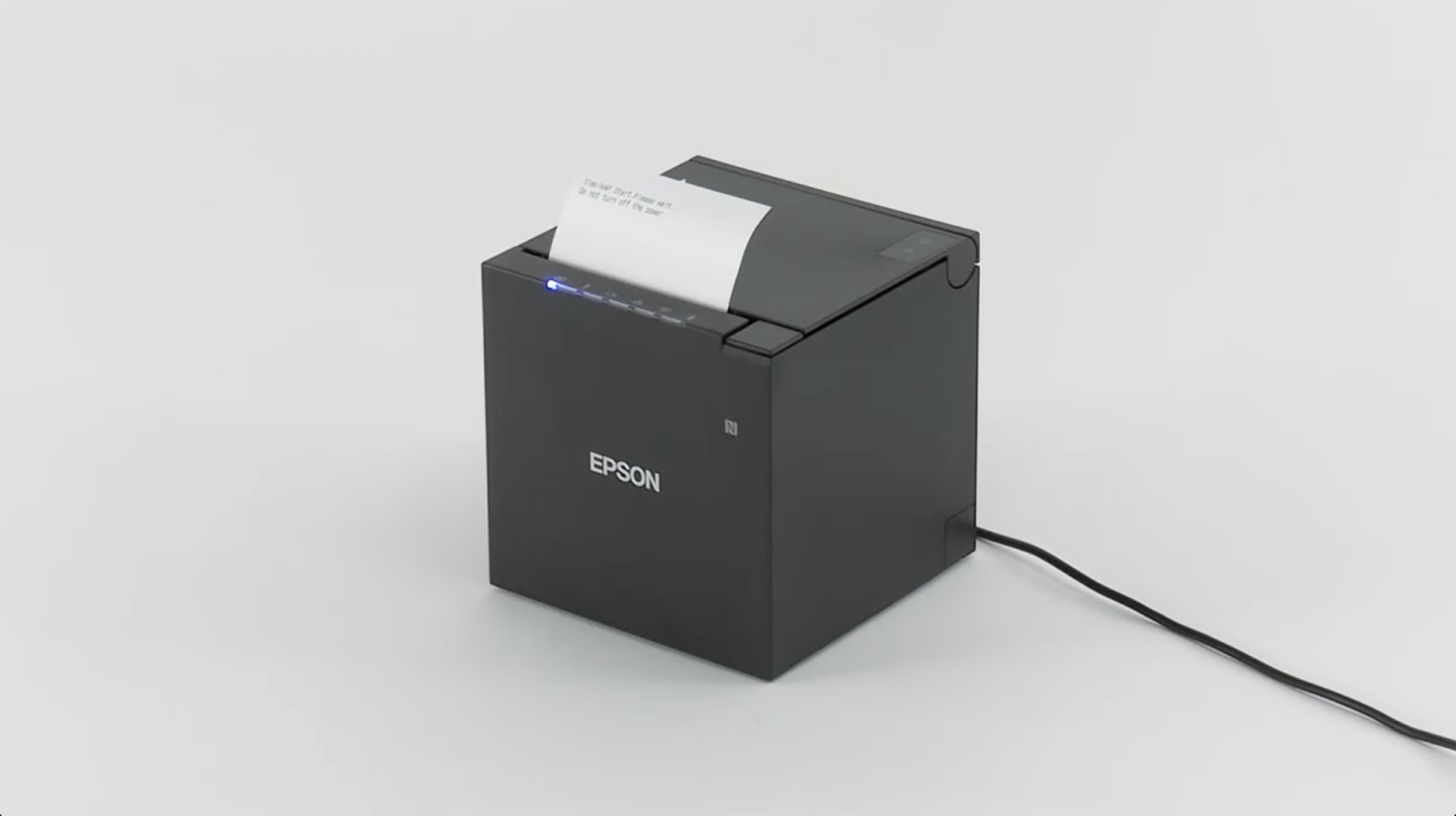
The Epson TM-m30III receipt printer can cause problems when pairing with Shopify POS. Although the printer appears in the list of available devices, the connection fails—both via Bluetooth and Wi-Fi. When adding the printer, Shopify initially displays “Printer connecting...”, but after a few seconds, the pairing is interrupted with the error message “Printer could not be connected”. However, the printer works fine with the Epson TM Utility app, so the hardware itself is not the problem.
Cause: RED security mode
The problem is related to RED security mode, which was introduced with the latest firmware to meet the requirements of the European Radio Equipment Directive (RED). In this mode, Bluetooth and Wi-Fi connections are heavily encrypted, preventing Shopify POS from successfully completing the pairing process.
You can check whether the printer is affected by RED security mode by printing the printer settings. To do this, press and hold the feed button on the printer for one second, close the paper cover, and print the status sheet. Then press the feed button twice quickly and hold it down again for one second to get the full report. Look for the line “Security Mode: RED” on this printout. If this line appears, the advanced security mode is active.
ATTENTION: All current printers that have been shipped have this security setting factory-set. Shopify itself has already removed the printer from the Hardware Store. We'll show you how you can still connect the printer to Shopify POS.
Solution: Disable “Secure Printing”
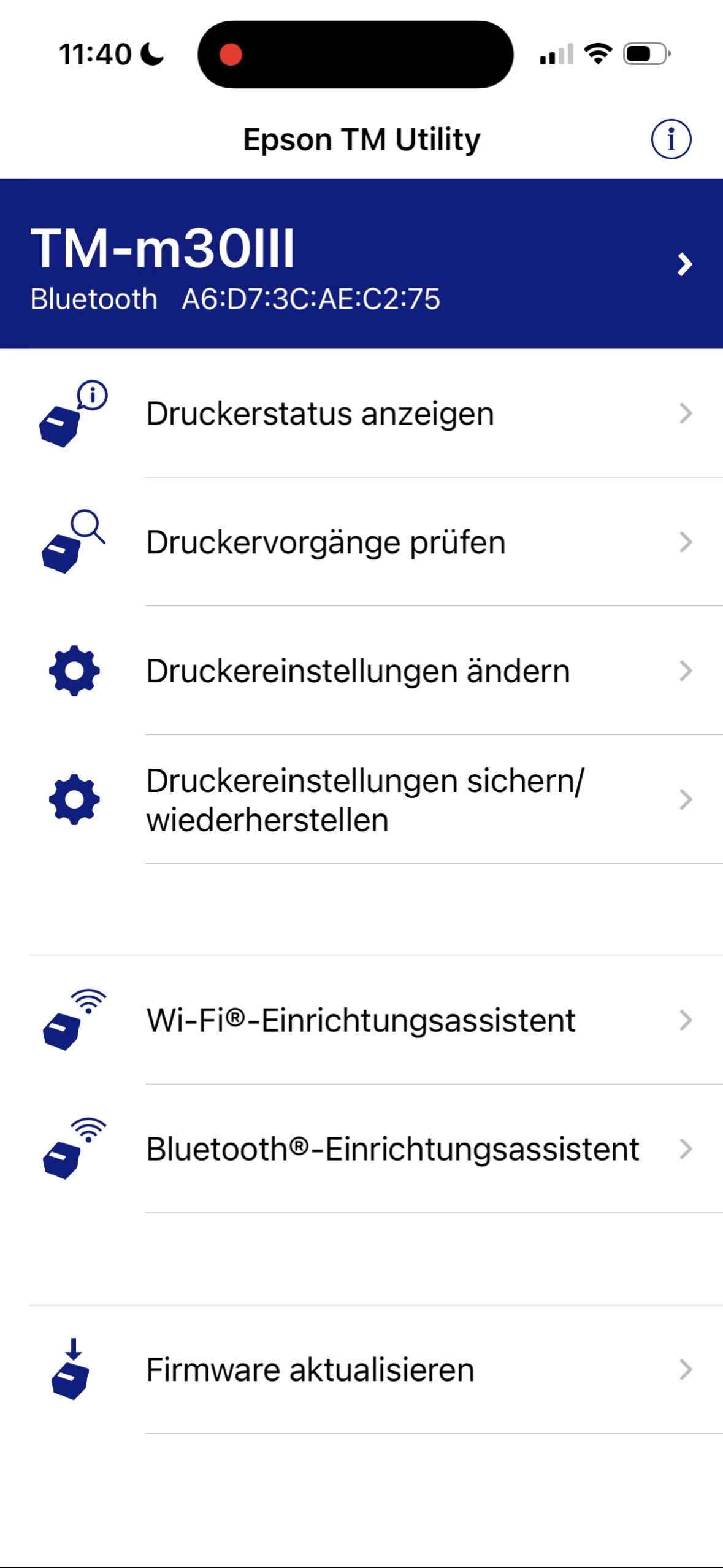
The problem can be solved by disabling the Secure Printing function. To do this, first connect the printer via Bluetooth using the Epson TM Utility app. Enter the admin password, which can be found on a sticker on the back of the printer, in the printer settings. Then navigate to Various Settings → Secure Printing and change the setting from “Enabled” to “Disabled.”
After applying the changes, the printer must be restarted. To reestablish the connection to Shopify POS, the printer should first be removed from the Bluetooth list on the tablet or iPad. The printer is then put back into pairing mode and added to Shopify POS. Once these steps are complete, the printer will pair immediately and print reliably. Connected cash drawers that are controlled via the printer will also work as usual again.
Video-Guide
We have put together a step-by-step guide in this video, which shows you everything from checking safe mode to re-pairing with Shopify POS:
Createsome Recommends
Get started safely with the Shopify POS system
A successful POS system requires more than just hardware. We support you in selecting devices, setting them up, configuring data and system settings, and training your team. This ensures that your POS runs smoothly right from the start—and we remain a reliable partner for your business even after go-live.